Invoices
Setting up your Staff Commissions
If you provide a commission to staff based on their sales or Invoice totals, FrameReady will track it.
-
Commissions allow you to set up the percentage amounts of sales commissions for each staff member.
-
Commissions only apply to actual monies received on Invoices.
-
This information is gathered from the payments section of the Invoice, not the line item entry.
For example, Sue Milton purchases $500 worth of framing but only deposits $200 in this pay period. The employee who took in the order receives a commission based on the $200.
How to Set Up Staff Commissions
-
Navigate to Main Menu > Invoices (the pale blue block) > Options tab > More Options (at the bottom).
-
In the General tab, click Commissions (at the bottom).
A new screen appears. -
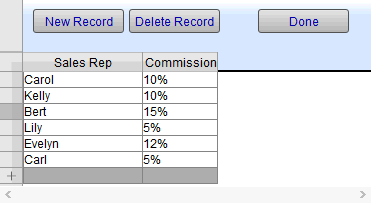
Click the New Record button.
A new line entry appears in the Sales Rep column. -
Click in the Sales Rep field and choose the employee, or type in their name exactly as it appears in the Sales Rep field on the invoice.
-
Click in the Commission field and enter the percentage by decimal, i.e. 10% = .10
-
Repeat for all commissioned staff.
-
Click Done.
Tip: Only Invoices created after you have set up the commission amounts are affected. The commission is not calculated on previously entered Invoices.
See also: Commission Sales Report